Setting Up Two-Factor Authentication for Your Business, Step by Step
A stolen password is the easiest way into a small business. Two-factor authentication adds a second check, so a password alone is not enough. This guide shows you where to turn it on, which method to pick and how to roll it out to your team without chaos.
How do you set up two-factor authentication for a business?
To set up two-factor authentication for business, first list every important account, starting with email. Turn on two-step login in each account's security settings, choose an authenticator app or security key over SMS where possible, save backup codes safely, and then make it compulsory for all staff from the admin console.
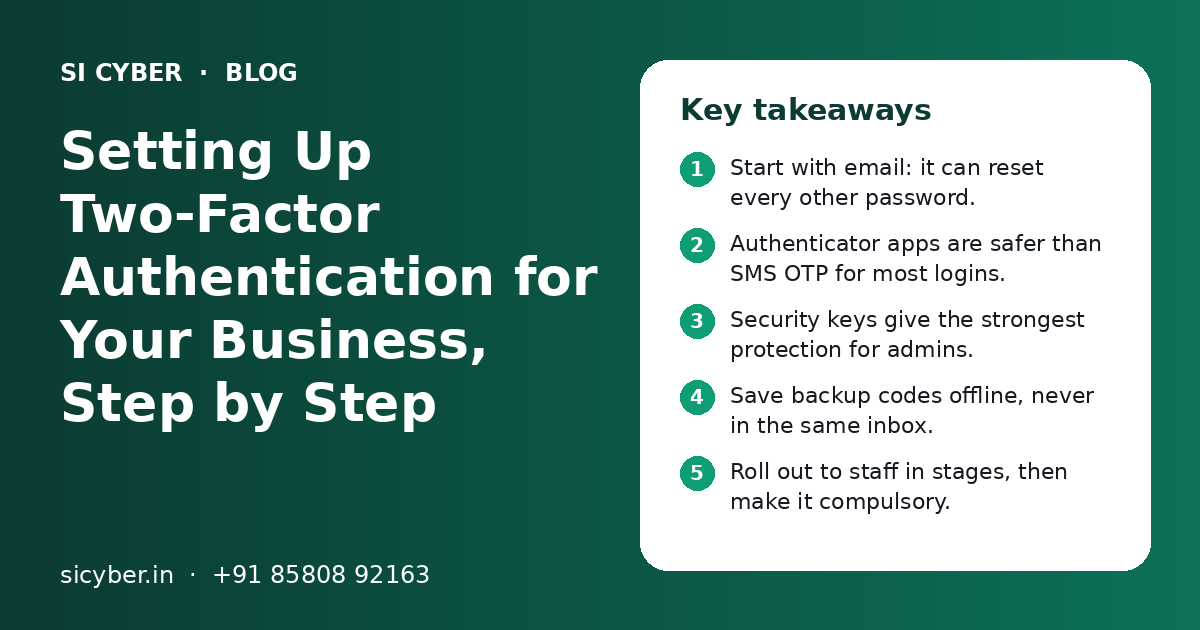
Key takeaways
- Start with email: it can reset every other password.
- Authenticator apps are safer than SMS OTP for most logins.
- Security keys give the strongest protection for admins.
- Save backup codes offline, never in the same inbox.
- Roll out to staff in stages, then make it compulsory.
- Give every person their own login, never a shared one.
What is two-factor authentication and why does a business need it?
Two-factor authentication means you need two things to log in: your password and a second proof, such as a code from your phone. A business needs it because one leaked password can open email, money and customer data.
Passwords leak in many ways. Staff reuse them on shopping sites, type them into fake login pages or share them on WhatsApp. Once a password is out, you cannot pull it back.
With two-factor authentication, the attacker also needs your phone or key. That one extra step blocks most simple account takeovers. It does not replace strong passwords, updated devices and careful staff, as our small business cybersecurity guide explains.
SMS OTP vs authenticator app vs security key: which should you use?
Use an authenticator app for most staff, a physical security key for owners and admins, and SMS OTP only when nothing else is offered. Any second factor is far better than none.
| Method | How it works | Strengths | Weak points |
|---|---|---|---|
| SMS OTP | A one-time code is sent to your mobile number | Easy, works on any phone, familiar in India | SIM swap fraud, delayed SMS, codes can be phished |
| Authenticator app | An app on your phone shows a new 6-digit code every 30 seconds | Works offline, not tied to the SIM, free | Codes can still be typed into a fake page; phone loss needs backup |
| Security key | A small USB or NFC key you touch to log in; some devices also offer passkeys that work in a similar way | Very strong against phishing, nothing to type | Must be bought and carried; keep a spare |
Why SMS OTP is the weakest choice
SMS OTP is common in India because banks and many apps use it. It is better than a password alone. But a criminal can trick a mobile operator into issuing a new SIM for your number, or trick you into reading out the code on a call.
Which business accounts should get two-factor login first?
Start with the accounts that can reset other passwords or move money: business email, domain and hosting, banking, and your website admin. Then cover social media, cloud storage and other tools.
| Priority | Account type | Why it matters |
|---|---|---|
| 1 | Business email (Google Workspace, Microsoft 365, hosting email) | Password reset links for other accounts arrive here |
| 1 | Domain registrar, DNS and hosting panel | Whoever controls these controls your website and email |
| 1 | Net banking and payment gateway | Direct access to money and refunds |
| 2 | Website admin (WordPress, Shopify, other CMS) | Attackers can add malware, spam or fake payment pages |
| 2 | Social media and Meta Business account | Your brand name, ad account and customer chats |
| 3 | Cloud storage, accounting, CRM and password manager | Customer data, invoices, GST records and saved passwords |
Write this list down in a simple sheet. Add who owns each account, which phone or key is used for the second factor, and where the backup codes are kept. This sheet becomes very useful when a person leaves or a phone is lost.
How do you set up two-factor authentication in Google Workspace and Microsoft 365?
In both, each user turns on two-step login in their own account security page, and the admin then makes it compulsory for everyone from the admin console. Give staff a short notice period before you enforce it.
Google Workspace and Gmail
- 1
Sign in to your Google Account
Open your account settings and go to the Security section.
- 2
Turn on 2-Step Verification
Follow the prompts. Google will first confirm your phone number.
- 3
Add a stronger method
Add Google Authenticator or another authenticator app, and add a security key or passkey for admin users.
- 4
Save backup codes
Download or print the one-time backup codes and store them safely, away from your email.
- 5
Enforce it for all users
In the Google Admin console, open the security settings for 2-Step Verification, allow users to enrol, set an enrolment period, then turn on enforcement.
Microsoft 365 and Outlook
In Microsoft 365, each user adds the Microsoft Authenticator app from their account security info page. The admin can then require multi-factor authentication for all users through security defaults or sign-in rules. Turn on number matching, so users type a number shown on screen instead of just tapping Approve.
Hosting email and older mail apps
Some basic hosting email services do not offer two-factor login at all. If yours cannot, it is a good reason to review your email setup. Also check your domain's SPF, DKIM and DMARC records, which make it harder for others to fake your mail.
How do you add two-factor login to your WordPress admin?
WordPress does not include two-factor login by default, so you add it with a trusted, well-maintained security or 2FA plugin. Then you make it compulsory for every administrator and editor account.
- 1
Take a full backup
Back up files and database before adding any plugin.
- 2
Pick one trusted plugin
Choose a 2FA or security plugin with recent updates and good reviews in the official directory. Do not stack several.
- 3
Set it up for your own account
Scan the QR code with your authenticator app, confirm the code and save the backup codes.
- 4
Require it for admin roles
Make 2FA compulsory for administrators, editors and shop managers.
- 5
Remove old accounts
Delete unused admin users and give agencies their own temporary login.
Two-factor login protects the login page, but not a site with an old, vulnerable plugin. Pair it with updates, a firewall and limited login attempts. Our WordPress security service covers these steps, and the website security checklist helps you check the rest yourself.
How do you protect social media and banking apps with a second factor?
Turn on two-factor login inside the security settings of each social media platform, and require it for everyone in your Meta Business account. For banking and UPI apps, use the security options your bank offers and keep the registered mobile number under the owner's control.
Facebook, Instagram, LinkedIn, X and YouTube
Each of these platforms has a two-factor option in its security settings. Choose an authenticator app over SMS where offered. In Meta Business settings, you can require two-factor login for everyone with access to your pages and ad account, so one weak staff login cannot expose the whole page.
WhatsApp and WhatsApp Business
Turn on two-step verification in WhatsApp settings. It asks you to set a six-digit PIN, which is needed if someone tries to register your number on a new phone. Add a recovery email so you can reset the PIN if you forget it.
Net banking, payment gateways and UPI
Banks and UPI apps already use OTPs, PINs and device checks. Keep the bank-registered mobile number with the owner or a trusted finance person, not a shared office phone. Use separate staff logins in corporate net banking, with clear limits on who approves payments, and turn on 2FA for payment gateway dashboards.
What are backup codes and how should you store them?
Backup codes are one-time codes that let you log in if you lose your phone or key. Store them offline or in a password manager, never in the same email account they protect.
Most services offer a list of backup codes when you turn on two-factor login. Each code works only once. If your phone is lost or reset, these codes are often the only quick way back in.
Safe places for backup codes
- A printed copy in a locked drawer or office safe
- A trusted business password manager with its own 2FA
- A sealed envelope with the owner, for admin accounts
Unsafe places
- A file called backup codes on the desktop
- The same email inbox the codes protect
- A WhatsApp chat or phone gallery screenshot
Also add a second recovery method where allowed, such as a spare security key or a second admin who can reset staff accounts. Our password security policy template includes simple rules for storing codes and recovery details.
How do you roll out two-factor authentication to your staff?
Roll it out in stages: start with owners and admins, explain why, give staff a short deadline and simple help, then make it compulsory from the admin console. Plan for lost phones before they happen.
- Week 1: Turn it on for the owner, admins and finance staff first, so they can help others.
- Week 1: Tell staff in simple words, in English or the local language, what will change and why.
- Week 2: Hold a short session to help everyone install an authenticator app and save backup codes.
- Week 3: Turn on enforcement in Google Workspace, Microsoft 365 and other tools.
- Ongoing: Add 2FA setup to the joining checklist and remove access on the last working day.
Handling common staff problems
- No smartphone: give a security key or a basic company phone for codes.
- Shared logins: replace them with one login per person first.
- Lost phone: an admin confirms the person by call or in person, then resets their second factor.
Staff should also know that a real login page never asks for a code over a phone call. Our phishing protection training shows staff how attackers try to steal codes. When people leave, follow our employee offboarding security checklist so their phone is removed from every account.
Common mistakes are covering only the owner's account, sending all codes to one office phone and saving backup codes in email. If you think an account is already taken over, 2FA alone will not remove the attacker. Read the signs your business email is hacked first.
How can SI Cyber help you set up two-factor authentication?
SI Cyber can list your key accounts, set up two-factor login across email, website, hosting and social media, and help your team adopt it smoothly. We explain every step in simple language.
A typical project covers an account review, admin settings, website admin protection, backup code storage and a staff session. We can also find related gaps through a security audit.
SI Cyber is powered by Shivah Web Tech, with 11+ years of experience and a 25+ member in-house team. We work Monday to Friday, 9:30 to 6:30 IST, from Mohali, and offer 24x7 emergency support for urgent issues. Cost depends on the number of users and tools, so you get a clear quote after a free call. Contact us to get started.
Related Pages
Password Policy Guide
A simple password and two-step login policy your team will follow.
Phishing Training
Teach your team to spot fake emails, calls and WhatsApp scams.
WordPress Security
Lock down WordPress logins, plugins, themes and hosting.
SMB Security in India
A plain guide to the cyber risks Indian small businesses face and how to handle them.
Frequently Asked Questions
Is two-factor authentication worth it for a small business?
Yes. It is one of the simplest and lowest-cost security steps a small business can take. Most account takeovers start with a stolen or reused password, and a second factor stops many of them. Setup takes a few minutes per account, and authenticator apps are free. The main effort is helping staff adopt it and planning for lost phones.
Which is better, SMS OTP or an authenticator app?
An authenticator app is better for most business accounts. It works without mobile signal and is not affected by SIM swap fraud, where a criminal gets a new SIM for your number. SMS OTP is still much better than no second factor, so use it if a service offers nothing else. For owners and admins, a physical security key is stronger still.
What happens if I lose my phone with the authenticator app?
Use one of your saved backup codes to log in, then remove the old phone and set up the app on your new phone. If you have no backup codes, your company admin can reset your second factor in Google Workspace or Microsoft 365 after confirming who you are. For personal accounts, follow the service's account recovery process, which can take longer.
Does two-factor authentication stop all hacking?
No. It blocks most attacks that rely on a stolen password, but it is not complete protection. Some phishing pages capture codes in real time, and malware can steal a logged-in session. Combine two-factor login with updated devices, unique passwords, careful checks of links, staff training and regular reviews of who has access to each account.
How do I make two-factor login compulsory for all employees?
In Google Workspace, use the Admin console to allow enrolment, set a deadline and then enforce 2-Step Verification for everyone. In Microsoft 365, turn on security defaults or set sign-in rules that require multi-factor authentication. Give staff a short notice period and a help session first, so the switch does not stop their work.
Should our website developer or agency also use two-factor login?
Yes. Anyone with admin access to your website, hosting, domain or ad accounts should use a second factor. Give each agency or developer their own named login instead of sharing yours, require two-factor login for that account and remove it when the work ends. This keeps control with you and makes it clear who changed what.
Talk to our team today
Call or WhatsApp +91 85808 92163. We reply fast, Monday to Friday.